For online tutors and teachers
Does Google Meet have a whiteboard? Not since Jamboard ended
No, not a built-in one. Meet's Whiteboard button used to open a Jamboard, and Jamboard stopped working in 2024. What is left is a whiteboard add-on from Meet's Activities list, which needs everyone signed in to Google, or a board you open next to the call and share by link. The quick fix: open the lesson board below and paste its link in the Meet chat. Your student can watch with no account, and writes after a free sign-in once you set the board to "Anyone with the link can edit". Instaboard is not a Meet add-on, so Meet keeps the video. Steps to open an add-on and a checklist for when it's missing are below.
Opens in your browser. Anyone can view; a free sign-in lets you edit.
Updated
The short answer
- No built-in whiteboard. Meet has none since Jamboard ended. Whiteboard add-ons need everyone signed in to Google, and schools can't turn them on for students under 18.
- To use an add-on, open Activities in the call and pick one (steps below). If it's missing, see the checklist.
- Instaboard is not a Meet add-on. The setup that always works: keep Meet for video and paste a board link in the Meet chat. Your student writes on the same board.
- Or skip Meet: start the call on the board, so your student opens one link for both. Free calls run 60 minutes; Pro has no limit.
- Long free lessons: a Google Product Expert says free 1:1 Meet calls can run up to 24 hours (Meet Help Community, September 2026), so keep Meet for video and use the board beside it.
Share the board with a 4-digit code
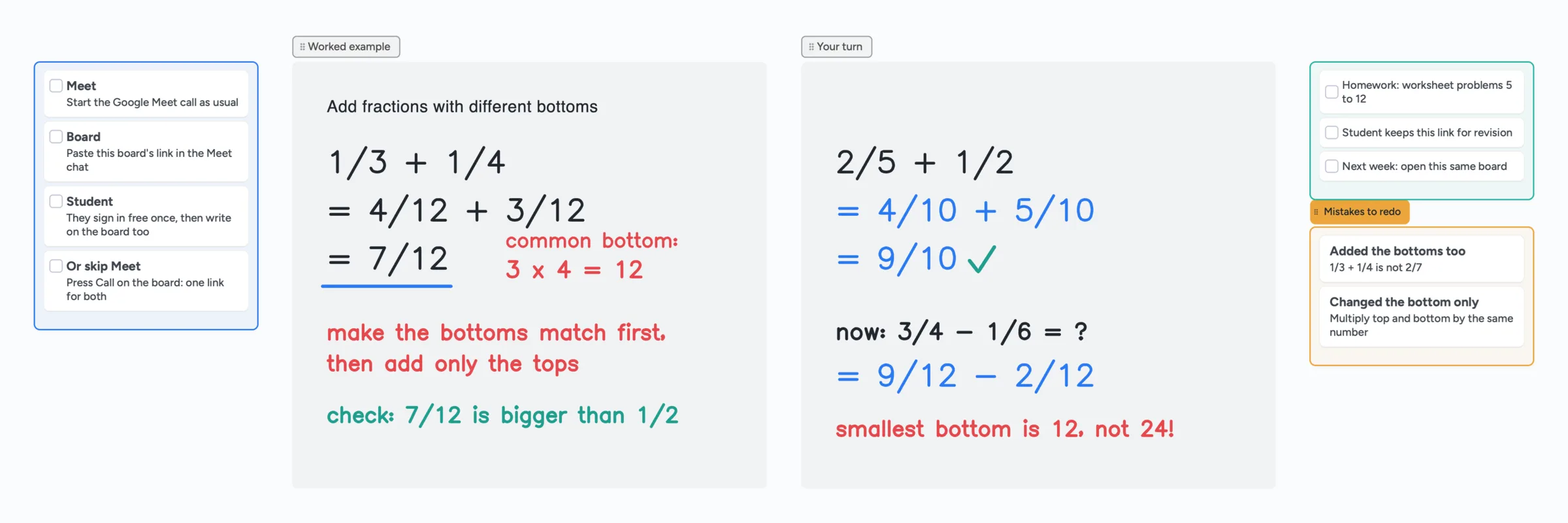
Open a board next to your call and give your student its 4-digit code. With the code they can watch the board without an account; to write their own answer they sign in, which is free.
What a lesson on the board looks like
The call sits on top of the board, so you talk and write in the same place. You write with a pen, point with the laser, and your student writes their answer on the same page in their own colour.
What happened to the whiteboard in Google Meet
Meet's Whiteboard button opened a Jamboard. Google stopped Jamboard on October 1, 2024: you can no longer create or edit Jams, and old Jams were turned into PDFs in Google Drive (search Drive for type:Jam). In its place, Google said whiteboarding in Meet would come from partner add-ons, naming FigJam, Lucidspark and Miro.
Add-ons work for many offices, but they're awkward for tutoring. Google's own help page lists when you can't use them:
- You're not signed in to a Google Account, or the meeting host gave you a View only role.
- Your Workspace admin blocked the add-on. And in Google Workspace for Education, third-party apps can't be turned on for users under 18.
- Your device isn't supported. Not every add-on works on every platform; you'll see "Can't join the activity" or a greyed-out add-on.
- Each add-on has its own account and free limits on top of Meet (FigJam and Miro free plans keep 3 editable boards).
"Unavailable" on a personal account
In April 2026 a Meet user on a personal Google account asked why the Collaborative Whiteboard add-on showed as unavailable; 12 people marked the same problem. If you hit this, a separate board shared by link is the quickest way around it.
How to open a whiteboard add-on in Meet
- Join or start the call signed in to a Google Account. Add-ons can't be used when you're not signed in.
- Open Activities in the call controls (the listing for the Collaborative Whiteboard add-on says it is usually at the bottom right).
- Pick the add-on from the list. Only add-ons installed for your account or your organisation appear. The Google Workspace Marketplace has several whiteboard add-ons made by other companies, and Miro is one of the partners Google named.
- Start the activity. With Miro, you choose a board and an access level, click Embed board, then Start activity; the other people in the meeting get a pop-up asking them to join the board.
If you can't see it or it won't start, check these:
- Are you signed in with a View only role, or has the meeting host limited you? Google lists both as reasons you can't use an add-on.
- Is it blocked by an admin, or is the student under the age of consent? Google says third-party apps can't be turned on for users under 18 in Workspace for Education.
- Which browser? Miro's help page says Miro in Meet works only in Chrome and Edge, and not in Incognito or Companion mode.
- Several Google accounts open in one browser? The Collaborative Whiteboard listing says that is the most likely cause of a blank sidebar or a missing menu, and tells you to sign out of the others. That is the vendor's advice, not Google's.
- Installed it but can't find it? A Google Product Expert answered a user in September 2025: "Google no longer offers a native whiteboard in Google Meet. You can use one of the several 3rd-party whiteboard add-ons in Meeting tools."
Each add-on has its own limits and sign-in. We haven't tested any of them with students. If it's still not working, the shared-board setups below don't depend on Meet's add-on list.
Two setups that work for a Meet lesson
| Board next to Meet | Call on the board (skip Meet) | |
|---|---|---|
| Links to send | Two: the Meet link and the board link | One |
| Free call length | Meet: 1:1 up to 24 hours, 3+ people 60 minutes | 60 minutes, with a warning 10 minutes before the end; Pro has no limit |
| Student needs | Google account for Meet, plus a free board sign-in to write | Just the free Instaboard sign-in |
| Best when | The school or family already uses Meet, or lessons run over an hour | You want one link and the call next to the work |
Swipe the table sideways to see every column.
Meet time limits as stated by Google Meet Product Experts in the Meet Help Community (September 2026); Google's requirements page says you need a Google account to use Meet. Checked November 11, 2026.
Setup 1: a shared board next to Meet
- Open the lesson board above and make it yours. One board per student works well: it stays between lessons.
- Start the Meet call as usual, and paste the board's link in the Meet chat. Or give your student the 4-digit join code.
- Your student opens the link in a browser tab, or the Instaboard app on a tablet. They can view straight away, and sign in once (free, with Google, Apple or email) to write.
- Arrange the windows. On a laptop, put Meet and the board side by side, or keep the board full screen and Meet in a small window. You don't need to screen-share the board: you both have it open.
- Write together. You work the example in black, your student answers in their own colour, and you both see every stroke live.
Teaching on an iPad with Apple Pencil? Join Meet on your laptop for the camera, open the same board on the iPad to write, and keep the iPad out of the call's audio so there's no echo. Step by step: use your iPad as a whiteboard (the same setup works with Meet).
Watch the setup in about a minute
A 1 minute 8 second walkthrough of this setup: the tutor ticks "Anyone who joins can edit" in Share, the student joins with the link or the four-digit code, signs in free to write, and you both see each stroke live. The video's call strip is an illustration, not Meet.
Let Your Student Write Live: Whiteboard for Zoom, Google Meet or Any Call
1:08 min · from the Instaboard YouTube channel
If your student can only watch: present the board tab
Sometimes a student can't open a second link, for example on a school device. You can show your board in the call instead. Google's help page for presenting in Meet gives these steps (read November 19, 2026):
- Join the Meet call.
- At the bottom, click Present now.
- Select A tab (Google also lists A window and Your entire screen), then pick the browser tab with your board. A Chrome tab shares that tab's audio by default.
- To show a different tab later, select it and click Share this tab instead on the banner.
- To finish, click Stop presenting.
This only goes one way: your student watches your tab and can't write on it. For them to write, they open the board link themselves, as in Setup 1. Google also says sharing your screen can be turned off by admin settings or by the meeting host's controls. We haven't tried presenting an Instaboard tab in a Meet call, so we don't say how it looks or how pen strokes keep up over the share.
Setup 2: skip Meet and call on the board
If Meet is only there for the video, you can drop it. Instaboard has a video call on the board, so your student opens one link and gets the call and the whiteboard together.
- Open the lesson board and start a call from the board.
- Send your student the board link or the 4-digit code before the lesson. They sign in once and join the call from the board.
- Teach and write in the same place. You see each other's video while you both write. Share your screen from a laptop or browser if you need to show something else.
When to keep Meet
If the student's school only allows Meet, if your lessons run past an hour and you're on the free plan, or if you rely on Meet's recording or captions, keep Meet for video and use the board next to it.
Other whiteboard options for a Meet call
Google's add-ons page says the Google Workspace Marketplace has third-party add-ons that work with Meet but are not made by Google, and that add-ons need a signed-in Google Account. Here is what each option's own pages say, read on November 19, 2026. Anything we couldn't read is marked.
| Option | How it runs beside Meet | Free plan, as its page says | Catch |
|---|---|---|---|
| Miro | A Meet add-on in Activities: pick a board and an access level, Embed board, Start activity | Free: 3 editable boards (the three most recent stay editable). Starter is $8 per member a month, billed yearly | Works only in Chrome and Edge, not in Incognito or Companion mode. Miro's help says people without a Miro profile can take part as guests if the board's permissions allow it |
| Excalidraw | Opens in its own browser tab (we did not check the Marketplace for a Meet add-on) | Free: 1 infinite scene, unlimited collaborators. Plus is $6 a month per user, with a 14-day trial | Its home page says drawings are saved in your browser's storage; cloud saving is listed under Plus. No cards, lists or calls |
| Whiteboard.fi | Opens in its own browser tab. The teacher starts a room and gives students the room code | Its help says you don't need a teacher account for the Free version. Basic and Premium need one, with a free trial. Prices not read: its pricing page didn't load | Made for teachers and classrooms. A room code works only while the teacher keeps that room open; a permanent room URL is a Premium feature |
| Microsoft Whiteboard | Meet add-on status not checked; it runs in its own tab or in Teams | Plan limits not checked | Microsoft's page says the Windows, iOS and Android apps retired on October 16, 2026, while Whiteboard continues on the web and in Teams for work or school accounts |
| Instaboard | Opens beside Meet in a browser tab or the app. Not a Meet add-on | Free: 5 boards, 150 items (pen strokes don't count), 3 pictures per board. Pro is $5 a month billed yearly ($59.99), or $7.99 monthly | Anyone with the link can view; writing needs a free sign-in |
Swipe the table sideways to see every column.
Miro: pricing page and its Google Meet help article. Excalidraw: Excalidraw+ pricing page. Whiteboard.fi: its support pages. Microsoft: the retirement page on Microsoft Support. Google: Use add-ons with Google Meet. All read November 19, 2026. We have not tested any of these with students.
Where the others are the better choice:
- Miro opens inside the call, and its guests can join without a Miro profile when the board allows it. It has far more templates than we do (its pricing page says 7,000+).
- Excalidraw is free with no cap on collaborators for a single scene, and is the simpler choice for quick sketches.
- Whiteboard.fi is built for classrooms: the teacher shares a room code and controls which board page students see.
- Microsoft Whiteboard is the natural choice if your organisation already runs on Teams.
Where Instaboard fits: you want cards, checklists and a mistakes-to-redo list next to the sketch, and the option to run the call on the board instead of Meet. Using Microsoft instead of Google? See whiteboard for Microsoft Teams.
What's on the board for a lesson
- A real pen: pressure-sensitive, works with Apple Pencil, stylus and touch; hold still to straighten a line; a laser pointer to point without drawing.
- Your worksheets: import a PDF and every page becomes a page you both write on.
- Math tools: equation cards, a Desmos calculator and a grid background you turn on in your own settings.
- Lesson structure: checklists for the plan and homework, and a "mistakes to redo" list, the way the ready board above is laid out.
- Follow view: your student can follow your screen so they see what you're pointing at.
For a full walkthrough of a lesson and how the free plan compares with Bitpaper, Lessonspace and Pencil Spaces, see our tutoring whiteboard guide.
iPad, stylus and Chromebook
- iPad with Apple Pencil: Instaboard has an iPad app with a pressure-sensitive pen. Turn on stylus mode and the pencil draws while your finger scrolls; the stylus side button erases. A common setup is Meet on a laptop for the camera and the board on the iPad (step by step).
- Add-ons on a tablet: Google says not every add-on works on every platform. On an unsupported one you see "Can't join the activity", and an add-on installed on mobile that doesn't work on desktop is greyed out. Check this before the lesson if your student joins Meet from a tablet.
- Chromebook: open the board in the Chrome browser. We don't have a Chromebook app and haven't tested on Chromebook hardware.
- Keeping the work: select cards and use Copy as image. There is no PDF or PowerPoint export of a card board, and no lesson recording.
What Instaboard doesn't do
- It isn't a Meet add-on. It doesn't appear in Meet's Activities list. It opens next to Meet, in a browser tab or the app, not inside the Meet window.
- Students sign in to write. Anyone with the link can view; writing needs a free sign-in with Google, Apple or email.
- Free calls end at 60 minutes, and the call needs a free sign-in too. Pro has no limit.
- No lesson recording, scheduling or payments.
- The eraser removes whole strokes. Undo is the quickest fix for the last thing you wrote.
- Free covers 5 boards, and each imported PDF becomes one of them.
If you are choosing a paid tutoring room instead, see our comparisons of Lessonspace and Pencil Spaces. New to teaching online? Read how to teach math online, and see an online whiteboard for math and online tutoring setup. Still deciding between the two calls? See Zoom or Google Meet for tutoring.
Start from the ready board
It opens in your browser in a few seconds, with nothing to install. Sign in for free when you want to save it and share it.
Questions
Does Google Meet have a whiteboard?
No, not a built-in one. Jamboard, which Meet's whiteboard used, stopped on October 1, 2024. Google now points to add-ons such as FigJam, Lucidspark and Miro, which need everyone signed in to Google and may be blocked by school admins.
How do I open a whiteboard in Google Meet?
Join the call signed in to a Google Account, open Activities, and pick a whiteboard add-on that is installed for your account or organisation, then start the activity. If none is listed, your admin may have blocked it, or you have a View only role. A board you share by link in the Meet chat works without any add-on.
Why is the whiteboard add-on unavailable in my Meet?
Google lists several reasons: you're not signed in, you have a View only role, your admin blocked it, you're under the age of consent, or the add-on doesn't support your device. Schools can't enable third-party add-ons for students under 18. A board you share by link avoids all of these.
Can my student write on the whiteboard during a Meet call?
Yes, with a shared board. Paste the board link in the Meet chat; your student opens it in a browser or the app, signs in once for free, and writes on the same page while you talk on Meet.
Do I have to screen-share the whiteboard in Meet?
No. Screen sharing only goes one way. If you both open the same board link, you both see and write on it live, and Meet only carries the video.
Can I share a whiteboard tab in Google Meet?
Yes. Click Present now at the bottom of the call and choose A tab, then pick the tab with your board (Google's help page for presenting in Meet). Your student can only watch it that way; for them to write, they open the board link themselves.
Which whiteboards work with Google Meet?
Google points to third-party add-ons from the Workspace Marketplace, and Miro's help describes its Meet add-on. Excalidraw, Whiteboard.fi and an Instaboard board open in their own browser tab next to the call. Each has its own free limits, listed in the table above.
Can I use Instaboard on an iPad or Chromebook with Meet?
On an iPad, use the Instaboard app with Apple Pencil, with Meet running on your laptop for the camera. On a Chromebook, open the board in the Chrome browser; there is no Chromebook app.
Can I tutor without Google Meet?
Yes. Start a video call right on the Instaboard board and send your student one link. Free calls run up to 60 minutes; Pro ($5 a month billed yearly) has no limit.
Is Instaboard free?
Yes. The free plan includes 5 boards, 150 cards and items across your account (pen strokes, arrows and sections don't count), 3 images and 1 file per board, unlimited collaborators and video calls up to an hour. Pro is $5 a month billed yearly ($59.99 a year), or $7.99 monthly, and the people you invite join free.
Sources
- Google: Jamboard device end of life information
- Google Workspace Updates: The next phase of digital whiteboarding (September 28, 2023)
- Google Meet Help: Use add-ons with Google Meet
- Google Meet Help: Requirements for Google Meet
- Google Meet Community: Where do I get my collaborative whiteboard (September 12, 2025, Product Expert answer)
- Miro Help Center: Google Meet
- Google Workspace Marketplace: Collaborative Whiteboard (listing updated November 20, 2024)
- Google Meet Community: Collaborative whiteboard add-on unavailable (April 16, 2026)
- Google Meet Community: Time limits on free accounts (September 2026)
- Google Meet Help: Present during a video meeting (read November 19, 2026)
- Miro pricing (read November 19, 2026)
- Excalidraw+ pricing (read November 19, 2026)
- Excalidraw home page (read November 19, 2026)
- Whiteboard.fi Support: How to register for a teacher account; How does the room code work? (read November 19, 2026)
- Whiteboard.fi Support: What is visible to students? (read November 19, 2026)
- Microsoft Support: Retirement of the standalone Microsoft Whiteboard apps (read November 19, 2026)
Related
Zoom or Google Meet for tutoring: which free call fits a lesson?
Zoom, Google Meet or Microsoft Teams for online tutoring: free call length, recording, annotation, how to tutor on Meet and on Teams, from the vendors' own pages (read November 5 and 6, 2026), plus a ready board to use next to any call.
A whiteboard for Zoom and Teams breakout rooms: one board, one section per group
How to use one whiteboard in Zoom or Teams breakout rooms: one board, one section per group, and how to get the link into every room. What Zoom and Microsoft say.
An online whiteboard for tutoring that works the way you teach
A free whiteboard for online tutoring: paste the worksheet, write with a pen, and your student answers on the same board. Call on it or beside Zoom.
Use your iPad as a whiteboard on Zoom (and let your student write too)
Use an iPad as a Zoom whiteboard: mirror it, use Zoom Whiteboard, share a board your student writes on, or skip Zoom. Echo, lag and AirPlay fixes.
How to teach math online: your first lesson, step by step
How to tutor math online as a beginner: what you need, how to run a first lesson on a board your student writes on too, with Zoom, Google Meet or no video app at all, and what to do without a whiteboard.
An online whiteboard for math: write, graph and let your student write too
What a math tutor needs from an online whiteboard: handwriting, typed equations, graphs and worksheets, and which tools have each. Free limits compared, plus a ready slope lesson board.
Online tutoring setup: what you need before your first lesson
What you need to start tutoring online: sound, light, camera, internet, a way to write, and a board your student writes on too. A plain checklist with a five-minute test call and a ready board to open.
A Lessonspace alternative for tutors who don't want to pay by the hour
Lessonspace has no free plan, only a trial: $9 a month covers 10 hours, then $1.95 an hour. What 10, 20 and 30 hours cost, what Lessonspace does better, and a free board where your student writes too.
A Pencil Spaces alternative for tutors who want a flat price
Pencil Spaces moved to per-hour plans on September 1, 2026: $0.40, $1 or $5 an hour plus a monthly minimum. What each costs at 10, 20 and 40 hours, where Pencil Spaces is better, and a flat-price board.
Jamboard alternatives for teachers, and how to get your old Jams back
Free Jamboard alternatives for teachers: share one board with your class by link, plus how to find your old Jams as PDFs in Google Drive (type:Jam).
Does Discord have a whiteboard? Yes, and here is how to open it
Yes: Discord has a Whiteboard activity. How to open it, what everyone in the session can change, when it expires, and a shared board to keep next to your call.