For online tutors
Zoom or Google Meet for tutoring: which free call fits a lesson?
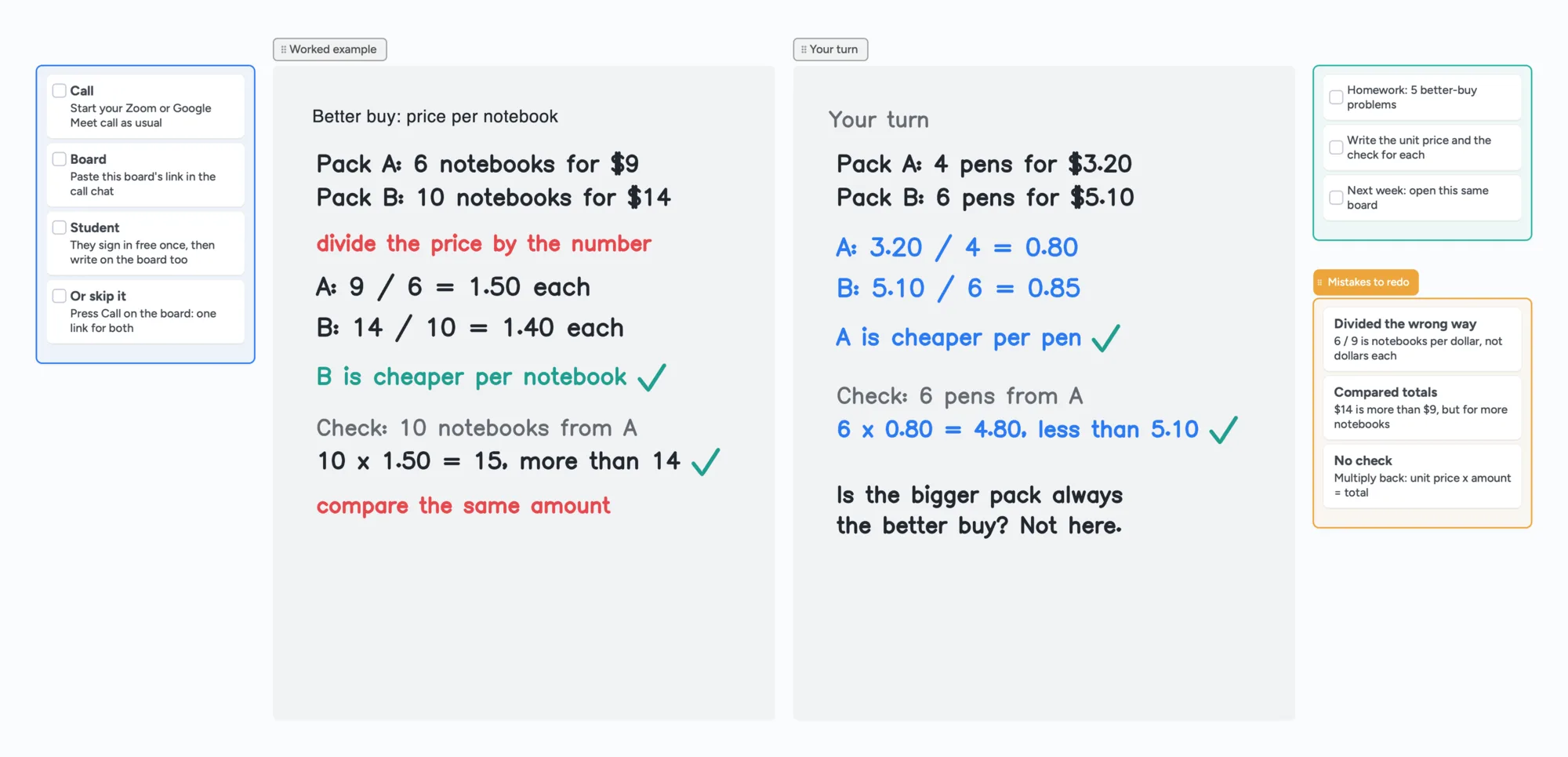
Whichever call you pick, this is the board you both write on: open the ready lesson board below and paste its link in the Zoom or Meet chat. Your student can watch with no account, and writes after a free sign-in once you set the board to "Anyone who joins can edit". The call itself decides the rest: how long a free call lasts, whether you can record, and whether anyone can write on the screen. Below is what Zoom's and Google's own pages say (read November 5, 2026), and how to tutor on Meet and on Microsoft Teams (Microsoft's pages read November 6, 2026).
Opens in your browser. Anyone can view; a free sign-in lets you edit.
Updated
The short answer
- For a free one-hour lesson, Meet is the safer pick. Google's page says that without a subscription, on a computer, one-on-one meetings can run up to 24 hours. A meeting hosted on a free Zoom (Basic) licence ends after 40 minutes.
- Zoom is the better pick if you need to write on the student's screen or record on a free account. Zoom lets presenters and viewers annotate shared content, and its page says computer recording is available to free and paid accounts.
- Microsoft Teams Free is a third option, but Microsoft's own pages disagree on its one-on-one limit. One says 1:1 calls between Teams users run up to 30 hours, another says there is no time limit; a meeting your student joins by link is free for 60 minutes. See the Teams section below.
- Any call needs a board. Meet has no whiteboard built in now that Jamboard is gone (does Google Meet have a whiteboard?), and annotation on a shared screen is not a worksheet you both keep. Put one board link in the call chat and write on it together.
Free Zoom and free Meet side by side (read November 5, 2026)
Each row comes from Zoom's or Google's own help page, read on November 5, 2026. The Instaboard column is our own plan. Check the linked pages for your account before you rely on a row.
| Zoom, free (Basic) licence | Google Meet, no subscription | Instaboard call (free) | |
|---|---|---|---|
| Call length with one student | 40 minutes: meetings hosted by a Basic licence end after 40 minutes with 1 host and 1 or more participants (KB0067966, updated October 29, 2025) | Up to 24 hours for one-on-one meetings on a computer. 3 or more people: up to 60 minutes, with a chime at 50 minutes (Meet Help, Requirements) | Up to 60 minutes per call, with a warning 10 minutes before the end. Pro has no limit |
| Recording | Computer recording is available to free and paid accounts, in the desktop app for Windows, macOS or Linux; not on iOS, iPad or Android (KB0063640, updated October 15, 2026) | Google lists paid Workspace editions, Google One with 2 TB or more, and Workspace Individual for recording; free personal accounts are not on its list. Computer or Android only (Meet Help, Record a video meeting) | No recording |
| Writing on the screen | Annotation tools for presenters and viewers while screen sharing; the host can turn participant annotation off (KB0067931, updated July 7, 2026) | No whiteboard built in now that Jamboard is gone. Annotation on a shared screen for the presenter and the co-annotators they add, on the Workspace editions Google lists (Meet Help, Use annotations in Google Meet) | A pen on a shared board; your student signs in free to write |
Swipe the table sideways to see every column.
Zoom: support.zoom.com KB0067966, KB0063640 and KB0067931. Google: support.google.com/meet answers 7317473, 9308681 and 14837571 (read November 5 and 6, 2026). Instaboard figures are our own plan. Plans and limits change.
How to tutor on Google Meet
- Before the lesson. Open the ready board below and swap in your own problems, then copy its link.
- Start the Meet call as usual and paste the board link in the Meet chat. Your student opens it in any browser.
- Teach on the board. Work the example with your pen while your student watches, then let them write the next one in their own colour. Your student signs in free once to write; anyone with the link can view.
- Keep the call and the board side by side, the call in one window and the board in another, or the board on an iPad while the call runs on your laptop.
- After the lesson, tick off the homework and note the mistakes. Your student keeps the link, so next week you open the same board.
For a full first lesson, see how to teach math online. For the click path of finding a whiteboard in Meet and why the add-on may be missing, see whiteboard for Google Meet.
How to tutor on Microsoft Teams (free account)
- Before the lesson. Open the ready board below, swap in your own problems, set Share to "Anyone who joins can edit" (a new board starts view-only for people with the link) and copy the link.
- Start the Teams call or meeting and paste the board link in the chat. Your student opens it in any browser. Students must be 13 or older; they sign in free to write, and anyone with the link can view.
- Know which Teams limit applies to you (table below) before you promise a student a long lesson.
- Keep the call and the board side by side, the call in one window and the board in another, or the board on an iPad while the call runs on your laptop.
- After the lesson, tick off the homework and note the mistakes. Your student keeps the link, so next week you open the same board.
| What Microsoft's pages say (read November 6, 2026) | |
|---|---|
| One-on-one call between two Teams users | Microsoft's free Teams page (FAQ): "Free 1:1 calls between Teams users for up to 30 hours." Its Teams Free for personal use page says: "There's no time limit for one-on-one calls." The two pages disagree, so we don't pick one. |
| A meeting your student joins by link | Free group calls and meetings run up to 60 minutes. The free Teams page says people can join a meeting link even without a Teams account. |
| Which one is a tutor's lesson? | Microsoft's pages don't say whether a lesson with a student who joins by link counts as a 1:1 call or as a meeting. Plan for 60 minutes unless you have tested your own setup. |
| Teams' own whiteboard | You can share a whiteboard with attendees from your own organization by default. External participants can use it only if your administrator turned on the right settings, and only during the meeting: they can't open it after it ends. |
| Annotating a shared screen | Microsoft Support's annotation article (undated): the presenter can let everyone annotate or only themselves. Someone else clicks Request and the presenter approves. The article doesn't say which accounts or plans it needs. |
| Teams for Education | Microsoft says students and educators can use it free "with an eligible, active education email address". Eligibility is checked per school; a school that doesn't qualify can still buy commercial offers. Microsoft's pages don't say whether a private tutor qualifies. |
Microsoft: microsoft.com/en-us/microsoft-teams/free, microsoft.com/en-us/microsoft-teams/teams-free, Microsoft Support (Whiteboard in a Teams meeting; Collaborate with external participants in a Teams meeting; Use annotation while sharing your screen in Teams; all undated), microsoft.com/en-us/education/products/teams and Microsoft Learn (Verify academic eligibility, Dec 2025 listing). All read November 6, 2026. Limits and plans change.
About the whiteboard. We found nothing on Microsoft's pages about a free personal Teams account hosting a whiteboard that a guest can edit, so we make no claim either way. One Business Standard user, an online English teacher, wrote on Microsoft Q&A in June 2024 that his guests could not edit a whiteboard he created; that is one person's report from one plan, not a statement from Microsoft. A board you share by link doesn't depend on any of this.
If your lessons run longer than an hour and you're not sure which Teams limit you're on, keep whichever call is long enough and open the board next to it. The Zoom 40-minute limit page lists the other ways to get a full hour.
What tutors say about the two
A February 2025 thread on r/TutorsHelpingTutors asked exactly this question, from a private math tutor who had mostly used Meet. The replies are individual tutors' opinions, not measurements:
- Several prefer Zoom for annotation on a shared screen and for recording sessions locally, and one says Zoom is worth $16 a month to avoid restarting after 40 minutes.
- Others prefer Meet because it is quicker for them and their students to start.
- One tutor reports using two document cameras on Zoom, one on the face and one on the paper they write on.
Prices and limits in a 2025 thread may have changed, so the table above is the source for today's limits.
Where Zoom or Meet is the better choice
- Meet for long free one-on-one calls. Up to 24 hours on Google's page, against our 60 minutes per call. If your lessons run 90 minutes, keep Meet for the video and use the board beside it.
- Zoom for writing on the student's screen. Annotation on shared content is built in. A board is for worked problems you both keep, not for marking up whatever is on their screen.
- Zoom for recording on a free account (desktop app). We don't record, and Google lists paid editions for Meet recording.
- Teams if you and your student already live in it. Microsoft says 1:1 calls between Teams users can run up to 30 hours, and a link works without a Teams account. If you sit inside a school or company Teams, its own whiteboard is built for your own organization; for a private lesson with an outside student, the link board is simpler.
On the Zoom side, the Zoom 40-minute limit for tutors lists the ways to get a full hour, and an iPad as a whiteboard on Zoom covers the iPad setups.
What the board doesn't do
- Your student needs a free sign-in to write.
- Free calls on the board run up to 60 minutes per call and need a free sign-in. There is no recording.
- The board sits next to your call; it is not a Zoom or Meet add-on and doesn't mark up your student's screen.
- The eraser removes whole strokes; undo is the quickest way to fix the last thing you wrote.
- No handwriting recognition, no plotter or algebra engine, no scheduling, and no class mode: you can't lock the board or make students follow you, though a student can tap your face to follow your view.
- Free covers 5 boards in your list, and 150 items across your account (pen strokes don't count). Pro is $5 a month billed yearly ($59.99 a year).
Start from the ready board
It opens in your browser in a few seconds, with nothing to install. Sign in for free when you want to save it and share it.
Questions
Is Zoom or Google Meet better for online tutoring?
It depends on the lesson. For a free call that runs a full hour or longer, Meet: Google's page says one-on-one meetings can run up to 24 hours on a computer without a subscription, while a free Zoom meeting with a student ends after 40 minutes. For annotation on a shared screen and recording on a free account, Zoom.
Can I tutor for a full hour free on Google Meet?
Per Google's Requirements page (read November 5, 2026), without a Meet subscription, on a computer, you can host one-on-one meetings for up to 24 hours. Meetings with 3 or more participants are limited to 60 minutes, with a chime at 50.
Can I record a tutoring lesson on Google Meet?
Google's recording page lists paid Workspace editions, Google One with 2 TB or more, and Workspace Individual. A free personal account is not on that list. The host must be allowed to record, and recording works on a computer or Android device.
Can I use Instaboard with Zoom or Google Meet?
Yes. Keep your call where it is, paste the board link in the call chat, and you both write on the board while you talk. The board sits next to the call; it does not run inside Zoom or Meet.
Can I tutor on Microsoft Teams for free?
Yes, with the free version. Microsoft's pages (read November 6, 2026) say free group calls and meetings run up to 60 minutes and that people can join a meeting link without a Teams account. For one-on-one calls between Teams users, Microsoft's free Teams page says up to 30 hours and its Teams Free for personal use page says no time limit, so the two disagree. Microsoft doesn't say which one a lesson with a student who joins by link counts as, so plan for 60 minutes unless you have tested it.
Can my student write on the Teams whiteboard?
Microsoft's pages say a Teams whiteboard is shared with attendees from your own organization by default, and that external participants can use it only if an administrator turned on the right settings and only during the meeting. We found nothing about free personal accounts. A board you share by link works the same in any call: set it to "Anyone who joins can edit", paste the link in the chat, and your student signs in free to write.
How do I tutor on Google Meet?
Start a Meet call, share a board link in the chat, and write on the board together: you work the example, your student does the next one. The numbered steps above cover the lesson from start to finish.
Sources
- Google Meet Help: Learn what requirements you need to use Google Meet (read November 5, 2026)
- Google Meet Help: Record a video meeting (read November 5, 2026)
- Google Meet Help: Use annotations in Google Meet (read November 6, 2026)
- Zoom: Understanding time limits for Zoom Meetings (KB0067966, updated 2025-10-29)
- Zoom: Enabling or disabling computer recording (KB0063640, updated 2026-10-15)
- Zoom: Using annotation tools for collaboration (KB0067931, updated 2026-07-07)
- r/TutorsHelpingTutors: Google Meet v/s Zoom v/s Others (February 2025)
- Microsoft: Free Microsoft Teams, FAQ (read November 6, 2026)
- Microsoft: Teams Free for personal use (read November 6, 2026)
- Microsoft Support: Use Whiteboard in a Teams meeting (undated; read November 6, 2026)
- Microsoft Support: Collaborate with external participants in a Teams meeting (undated; read November 6, 2026)
- Microsoft Support: Use annotation while sharing your screen in Teams (undated; read November 6, 2026)
- Microsoft: Teams for Education (read November 6, 2026)
- Microsoft Learn: Verify academic eligibility for Microsoft 365 Education subscriptions (read November 6, 2026)
- Microsoft Q&A: Sharing a whiteboard with an external guest user (June 20, 2024; one user's report; read November 6, 2026)
Related
Does Google Meet have a whiteboard? Not since Jamboard ended
Google Meet has no built-in whiteboard since Jamboard ended. How to open an add-on, what to check if it's missing, and a board your student can write on.
The Zoom 40-minute limit: what it means for a one-hour lesson
Free Zoom meetings with others end at 40 minutes. What the rule says, and what a tutor can do for a one-hour lesson: Zoom Pro, Google Meet, Teams Free, or a call on the board.
Use your iPad as a whiteboard on Zoom (and let your student write too)
Use an iPad as a Zoom whiteboard: mirror it, use Zoom Whiteboard, share a board your student writes on, or skip Zoom. Echo, lag and AirPlay fixes.
An online whiteboard for tutoring that works the way you teach
A free whiteboard for online tutoring: paste the worksheet, write with a pen, and your student answers on the same board. Call on it or beside Zoom.
How to teach math online: your first lesson, step by step
How to tutor math online as a beginner: what you need, how to run a first lesson on a board your student writes on too, with Zoom, Google Meet or no video app at all, and what to do without a whiteboard.
Online tutoring setup: what you need before your first lesson
What you need to start tutoring online: sound, light, camera, internet, a way to write, and a board your student writes on too. A plain checklist with a five-minute test call and a ready board to open.
A Zoom Whiteboard alternative where your student writes too
Zoom's free whiteboard gives you 3 editable boards, sharing is built around Zoom accounts, and free calls stop at 40 minutes. What tutors use instead, where Zoom is still better, and a ready lesson board.
A whiteboard for Zoom and Teams breakout rooms: one board, one section per group
How to use one whiteboard in Zoom or Teams breakout rooms: one board, one section per group, and how to get the link into every room. What Zoom and Microsoft say.